Components / Widgets
W
woo-cart-drawer

Cart Drawer

Render the slide-out cart drawer layout.

Setup steps

  1. Open the FramerWoo plugin and insert Cart Drawer.
  2. Place this in a global navigation, utility bar, drawer, or reusable site section.
  3. Configure the component behavior in Framer's property panel.
  4. Style its default, responsive, loading, and empty states on canvas.
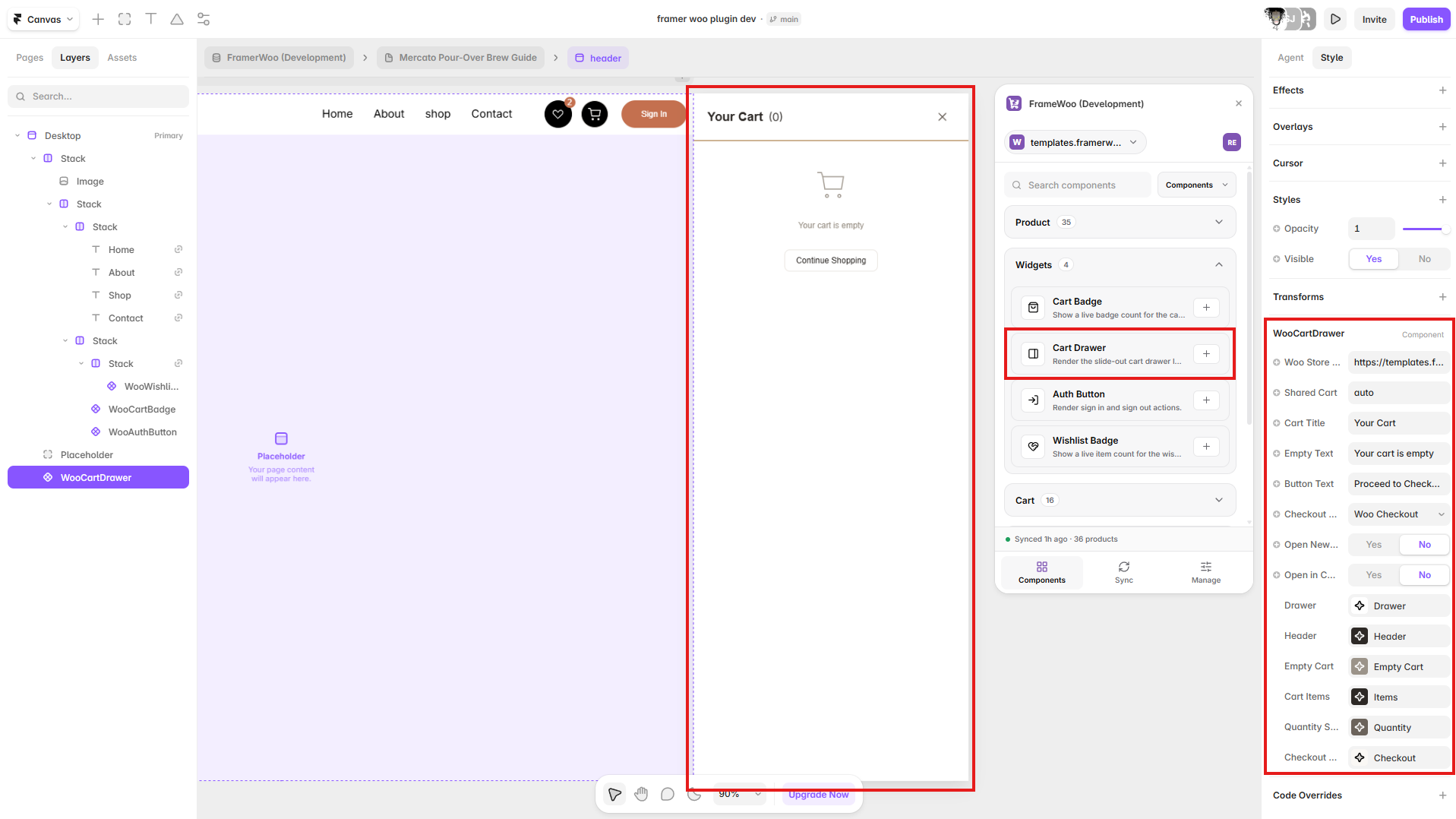
Cart Drawer opened on a Framer page with its cart settings visible in the property panel
Insert Cart Drawer at the page level, then connect it to the shared cart used by your cart badge and actions.

Property panel

Use Framer's controls to connect context and match your visual system.

Context
Controls the WooCommerce or CMS data source used by the component.
Content
Controls visible labels, values, formatting, and empty-state copy.
Style
Controls typography, colors, spacing, alignment, and responsive behavior.
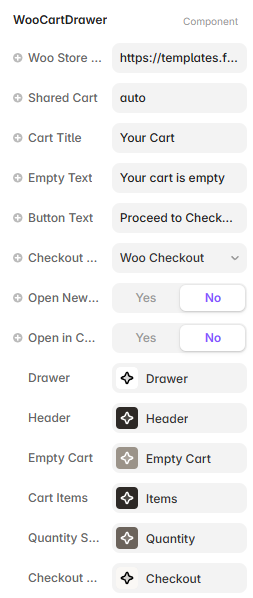
Framer property controls for the Cart Drawer component
Cart Drawer controls for store connection, shared cart state, labels, checkout behavior, and nested styles.
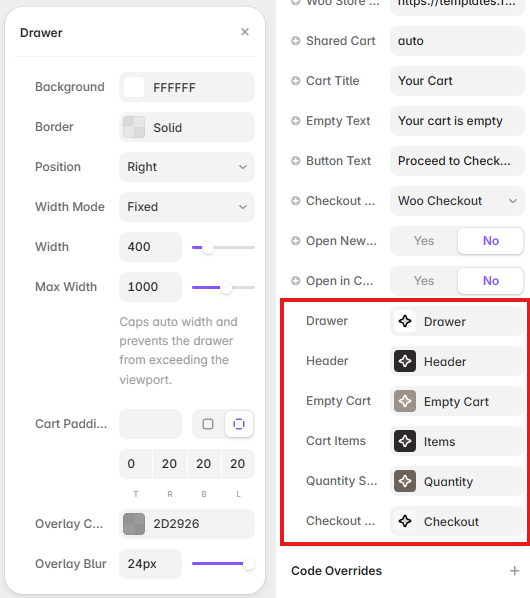
Cart Drawer style controls showing position, dimensions, padding, overlay color, and blur options in Framer
Open Drawer to configure its surface, position, width, padding, overlay color, and blur.