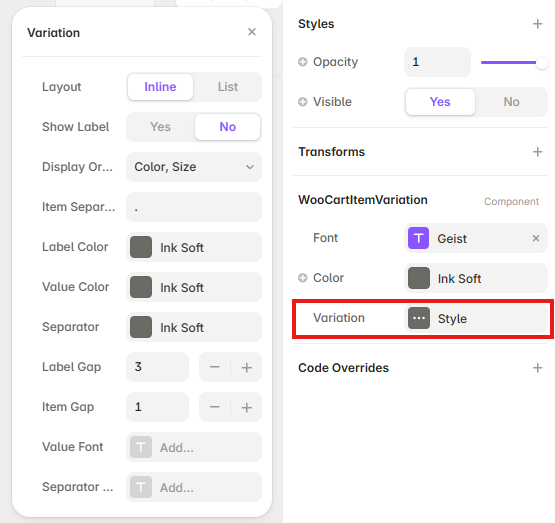
Setup steps
- Open the FramerWoo plugin and insert Cart Item Variation.
- Place item-level components inside a Cart List, Cart Drawer, or Cart Page context.
- Configure the component behavior in Framer's property panel.
- Style its default, responsive, loading, and empty states on canvas.
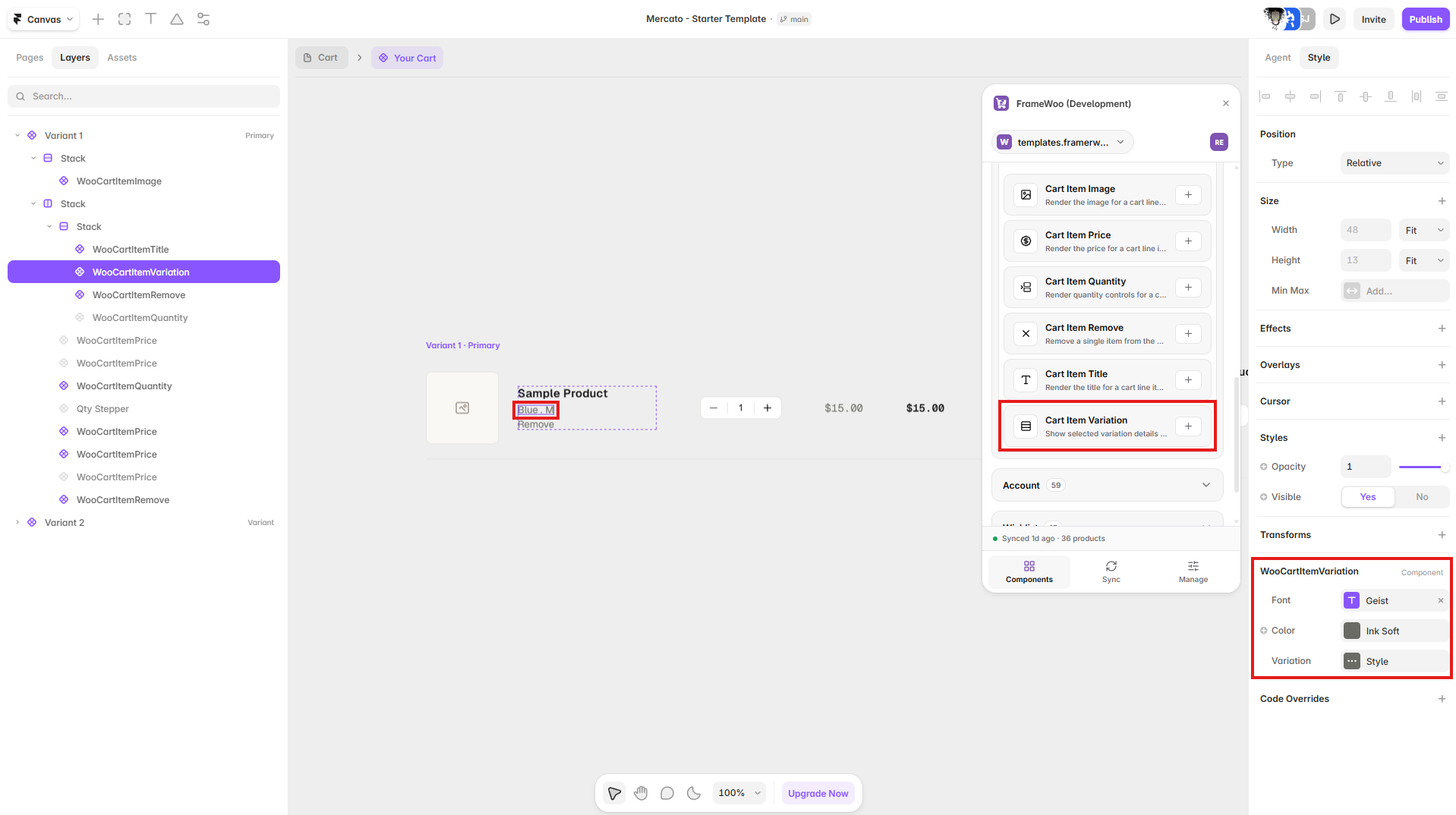
Property panel
Use Framer's controls to connect context and match your visual system.
- Context
- Controls the WooCommerce or CMS data source used by the component.
- Content
- Controls visible labels, values, formatting, and empty-state copy.
- Style
- Controls typography, colors, spacing, alignment, and responsive behavior.