Incremental sync
Incremental sync imports products added, changed, or moved to Trash since the last successful sync. Products that have not changed are left untouched, so routine updates finish faster than syncing the entire catalog again.
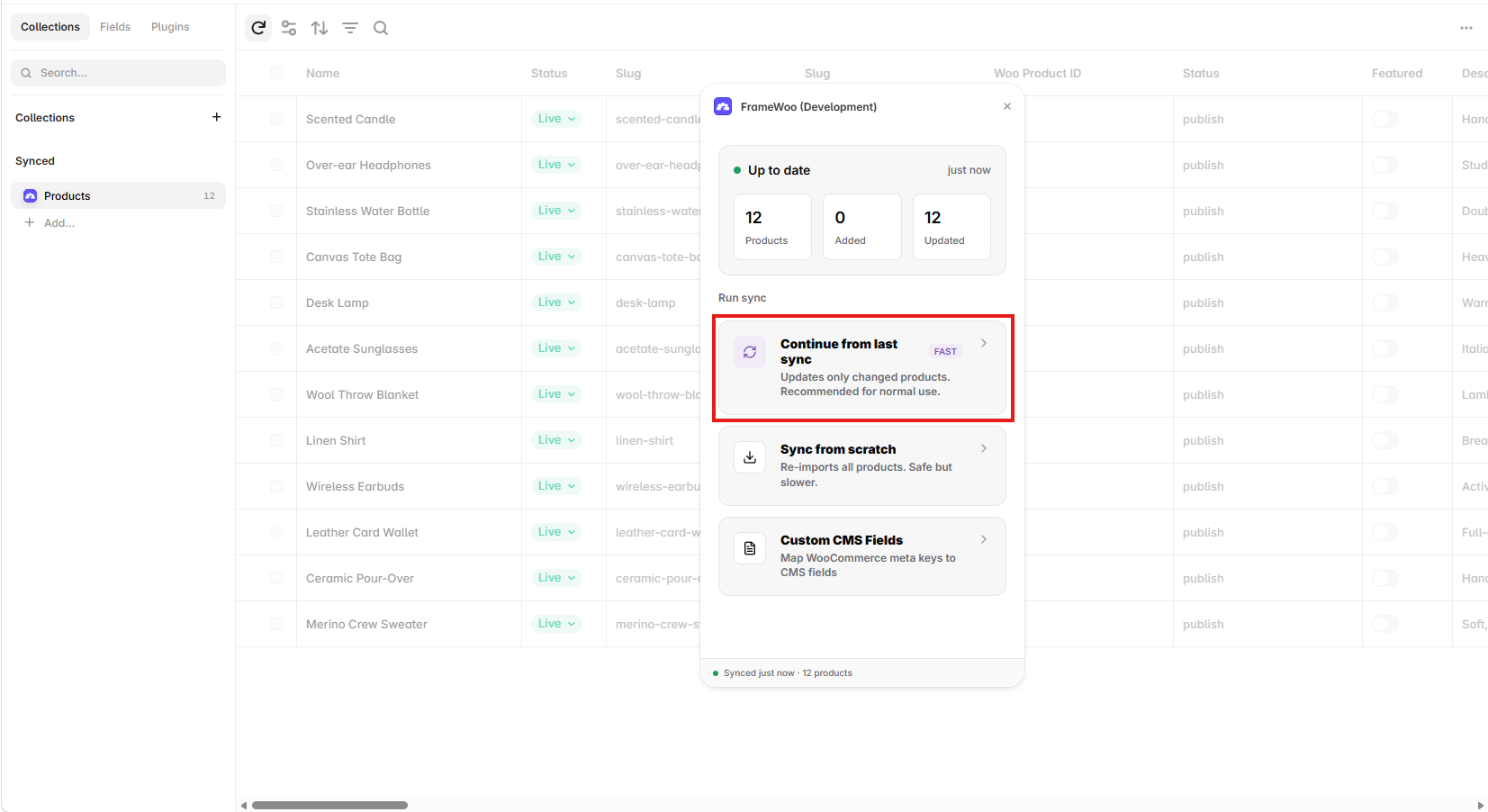
Run an incremental sync
- Open the Products collection in Framer CMS.
- Open FrameWoo from the collection’s Plugins control.
- Under Run sync, select Continue from last sync.
- Keep Framer open until the status changes to Up to date.
- Review the Added and Updated totals shown in the sync summary.
Sync from scratch
Sync from scratch reads the complete WooCommerce catalog again, updates every matching product in Framer, imports missing products, and removes managed collection items that no longer exist in the store. It is thorough, but slower than an incremental sync.
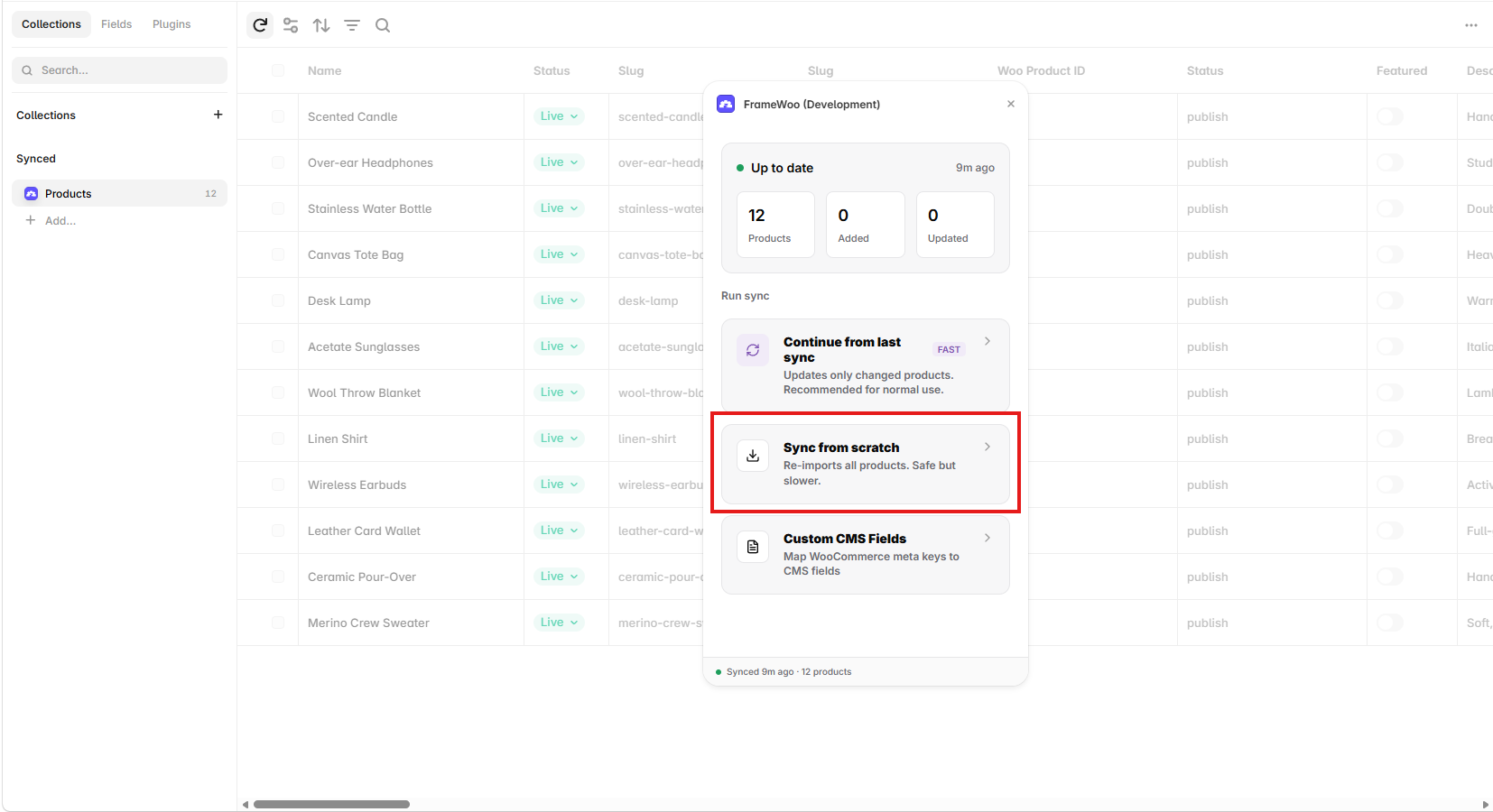
When to use it
- The Framer Products collection is missing products or contains stale data.
- You changed the product field structure or repaired a failed import.
- You want to reconcile the entire collection after a large catalog migration.
Custom Framer fields
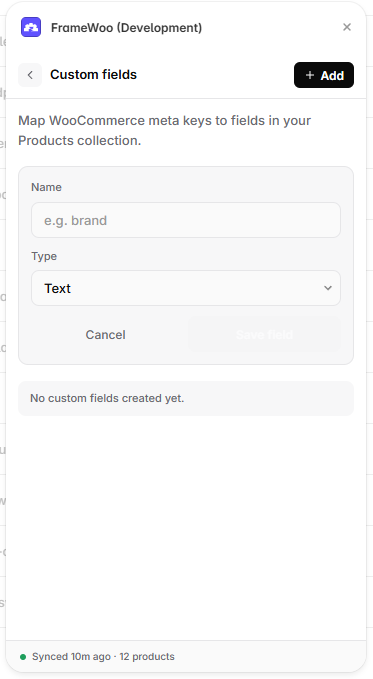
Custom CMS Fields adds selected WooCommerce metadata to your managed Framer Products collection. Use it for store data such as a brand, material, care instruction, or another value that is not included in FrameWoo’s standard product fields.
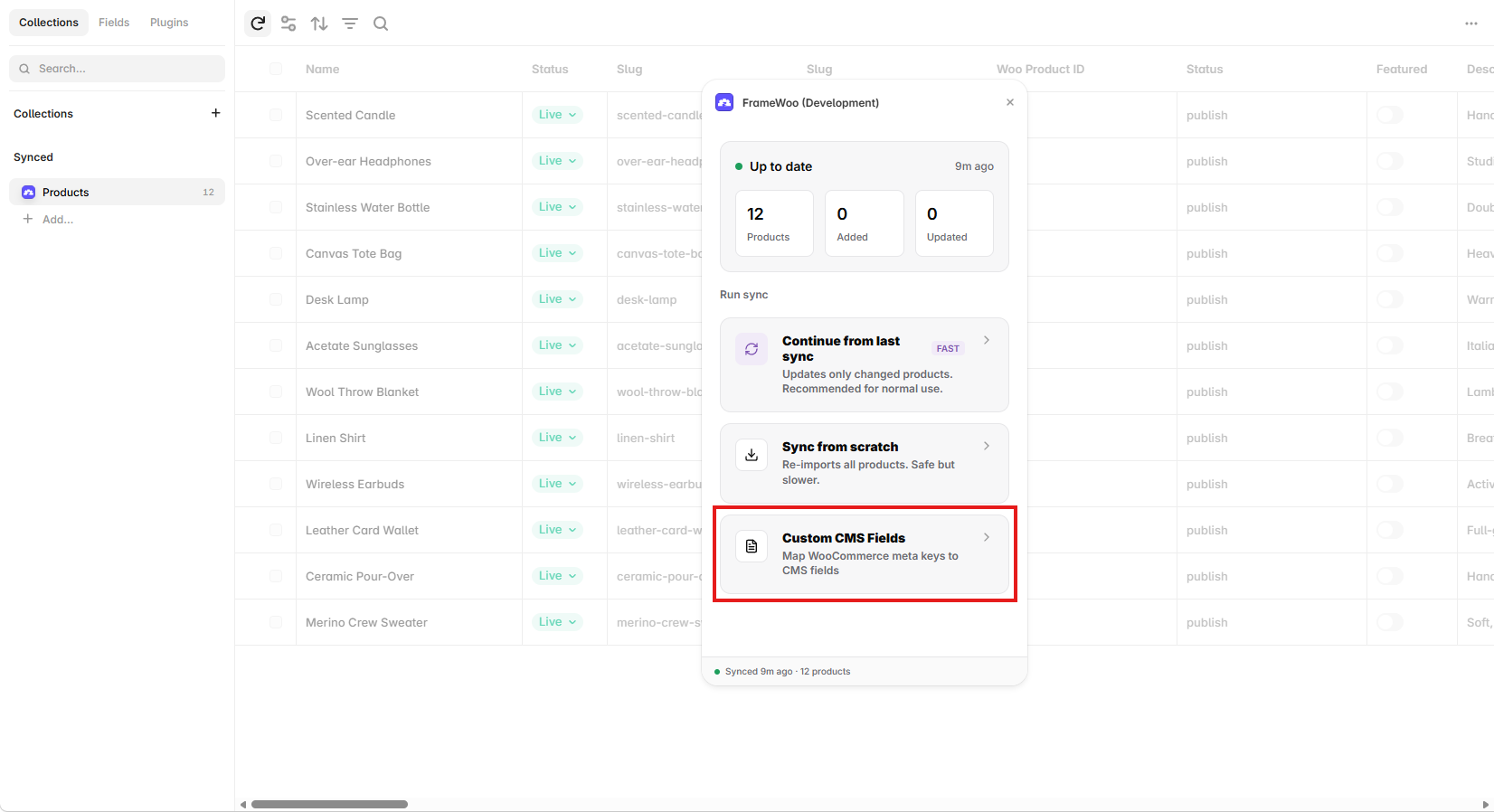
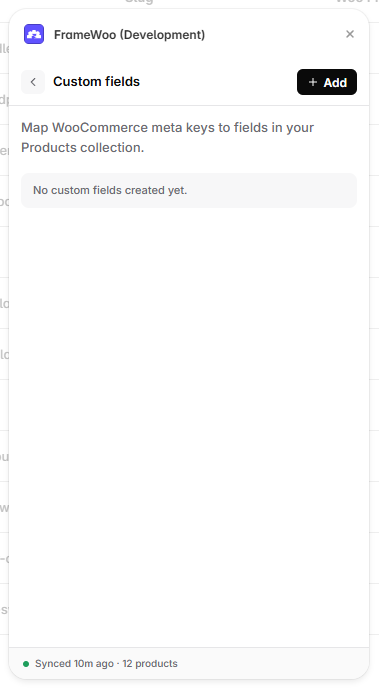
Add a custom field
- Open Custom CMS Fields and select Add.
- Enter the metadata name without the leading underscore. For example, enter brand to map _brand to the Framer field brand.
- Choose the matching field type, such as Text, Number, Toggle, Date, Image, or Gallery.
- Select Save field, then save the field changes.
- Run a sync to populate the new field for your products.