Components / Product
P
woo-quantity-selector

Quantity Selector

Let shoppers choose a cart quantity.

Setup steps

  1. Open the FramerWoo plugin and insert Quantity Selector.
  2. Place this inside a product CMS context so it can read the current product automatically.
  3. Configure the component behavior in Framer's property panel.
  4. Style its default, responsive, loading, and empty states on canvas.
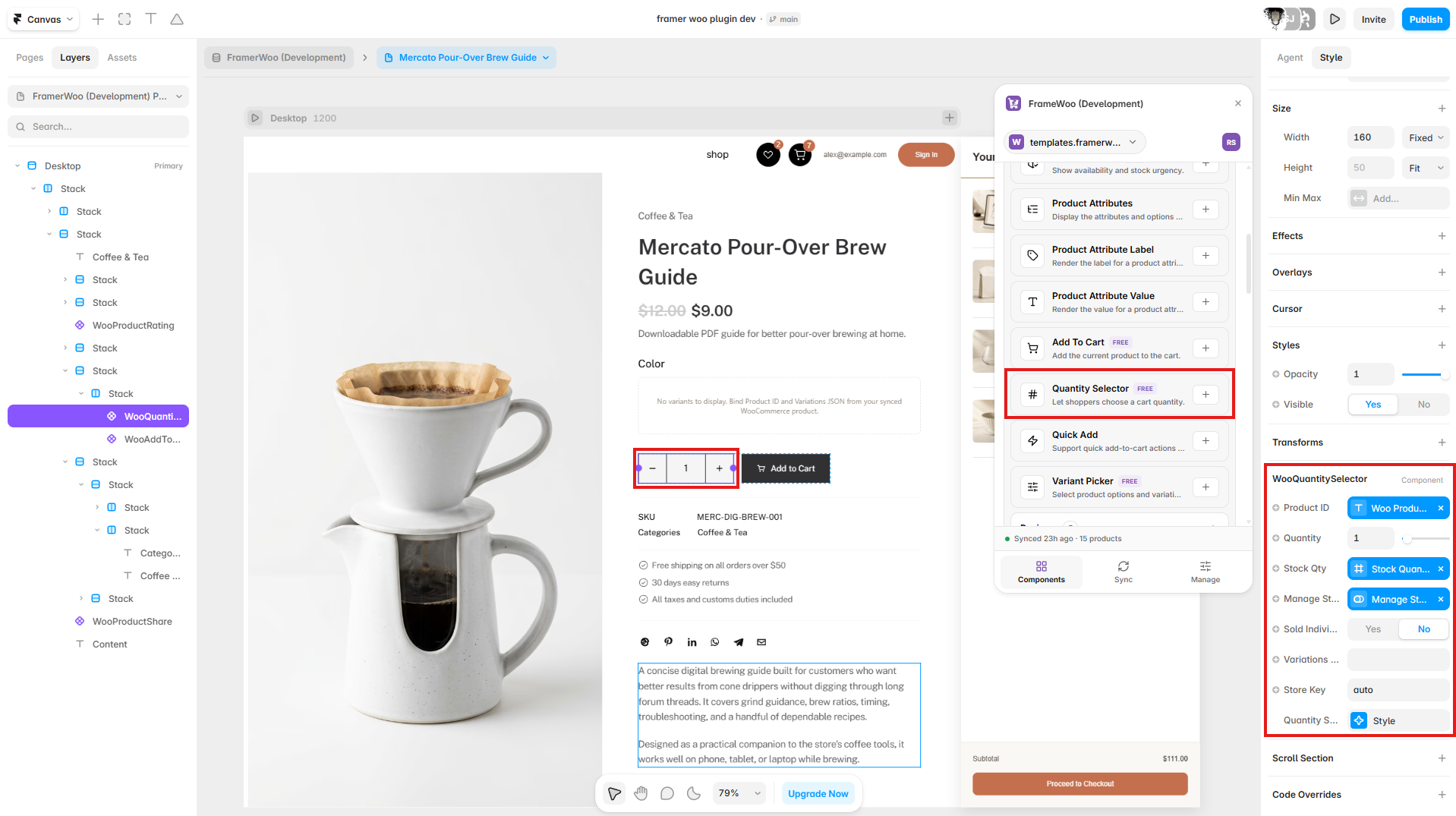
Quantity Selector displayed beside Add To Cart on a Framer product page with stock fields connected
Insert Quantity Selector inside the product CMS context, then connect Product ID and stock quantity.

Property panel

Use Framer's controls to connect context and match your visual system.

Context
Controls the WooCommerce or CMS data source used by the component.
Content
Controls visible labels, values, formatting, and empty-state copy.
Style
Controls typography, colors, spacing, alignment, and responsive behavior.
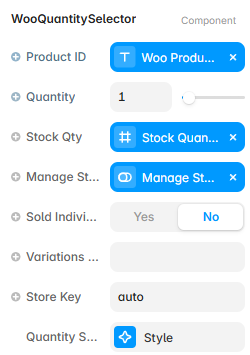
Framer property controls for the Quantity Selector component
Quantity Selector controls for product context, quantity, stock limits, variation data, and store state.
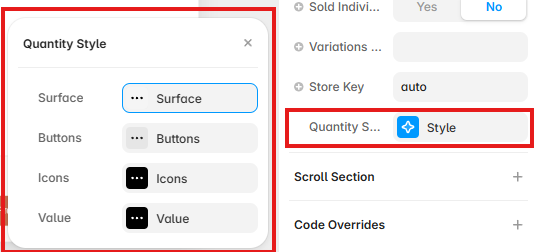
Quantity Selector Style controls showing surface, button, icon, and value options in Framer
Open Quantity Style to configure the surface, buttons, icons, and quantity value.